Changelog

A simpler first-time setup

Setting up VoiceAppear for the first time is now a guided walkthrough in three parts: push-to-talk, hands-free dictation, and a practice email. Each part leads you through the steps one by one.
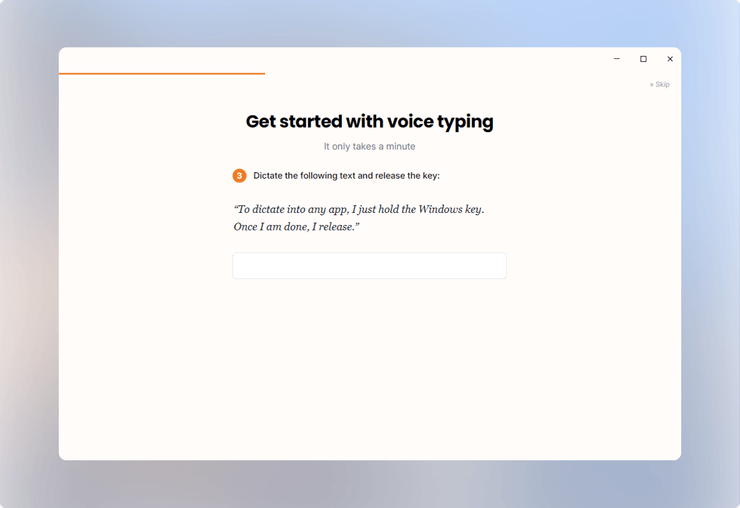
A step of the guided setup, asking you to hold the Windows key and dictate a sentence

Why a walkthrough

Many users did not know that hands-free mode exists, because nothing in the app pointed to it. The new setup has you try each mode once, so by the end you have dictated with push-to-talk, used hands-free mode, and written a short sample email with your voice.

Practice out loud

Every step asks you to read a sentence out loud while holding your shortcut. Using the keys once yourself makes them much easier to remember than reading about them in a settings screen.
Whisper your dictations

VoiceAppear now also understands whispering and quiet speech.

A new floating bar design

The floating bar has a new design:

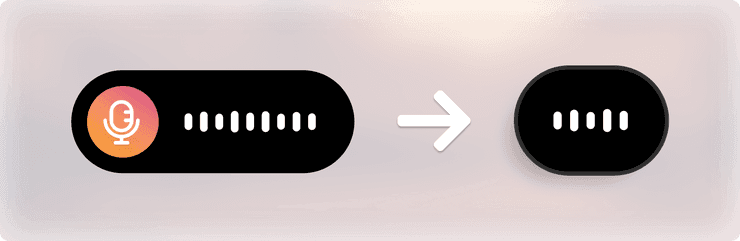
The floating bar before and after the redesign: the old wide bar with a microphone icon, and the new compact bar

Kept as minimal as possible

Dictation should fit into what you are doing without distracting from it. The microphone icon is gone and the bar is much narrower: a compact strip that shows the waveform while you talk.

Faster after startup

VoiceAppear now also starts faster after you turn on your PC: it used to take up to a minute, now it is ready within seconds.

Turn off dictation history

You can now turn off the local dictation history. Dictations are then no longer saved on your computer and cannot be restored later. Useful if other people use the same computer.

Better Claude Code dictation

VoiceAppear now recognizes commands, agents and filenames when you dictate in Claude Code.

The VoiceAppear logo next to the Claude Code logo

Commands come out as commands

Before, saying "slash code review" produced the literal words "slash code review", and command names lost their dashes. The same happened to skills and agent names. You had to correct this manually every time.

Formatted the way Claude Code expects

Now VoiceAppear knows when you are dictating into Claude Code. Commands come out as /code-review, agents and skills keep their exact names, and filenames are spelled the way they should be (camelCase vs. PascalCase, etc.).

Dictate full commands

Since nothing needs correcting anymore, you can dictate a full command, including the slash and its arguments, without typing anything.

Pauses no longer end your sentence

VoiceAppear no longer ends the sentence when you pause; punctuation is only added where the sentence actually ends.

Two push-to-talk shortcuts

You can now set up two different push-to-talk shortcuts and use either one, for example one key at your desk and another on the couch. Every place in the app that shows your shortcut now shows both, and each one keeps its own hands-free combination. Mouse buttons can be part of either shortcut too.

More accurate speech recognition

Dictation moved to a new, more accurate speech recognition. Words are transcribed more precisely, and the text appears sooner after you stop speaking.

VoiceAppear now also expects the language your computer is set to, so dictating in your own language works correctly from the first sentence. Other languages are still understood.

Add a screenshot to your dictation

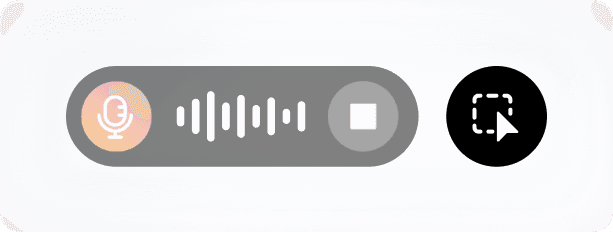
A new screenshot button appears next to the floating bar during hands-free dictation. Press it and drag a rectangle over any part of your screen; the screenshot is added to your dictation and arrives in chat apps as a real image.

The floating bar during hands-free dictation, with the screenshot button appearing next to it

Paste images into a dictation

The Paste button next to the floating bar now handles images as well as text. Copy an image, press Paste while dictating hands-free, and it travels with your text, landing in chat apps as a real image.

Better dictation with wireless headsets

VoiceAppear now waits until a wireless headset's microphone is truly listening before it shows as ready, so your first words always make it into the transcript. Headsets that connect through a USB dongle no longer interrupt a dictation.

Every word makes it into the transcript

Everything you say makes it into the transcript, including words spoken after a pause and a short addition right before you let go of the key.

Transcripts appear about three times faster

Transcripts now appear within ~300ms on average.

A lightning bolt

A new model behind it

Dictation moved to a new speech recognition model that is both more accurate and up to three times faster, in every language VoiceAppear supports. The speed does not cost any quality: the new model transcribes more precisely than the old one.

What you will notice

In practice, anything below 350ms feels almost indistinguishable from real-time speed. If you love speed, this is for you.

Dictation survives internet dropouts

A short internet dropout while dictating no longer loses anything. The dictation continues on its own once the connection is back, and your text still arrives.

VoiceAppear uses almost no resources while idle

While you are not dictating, VoiceAppear now uses almost none of your computer's resources.

A redesigned app window

The app window has been redesigned, with a sidebar for Home, Vocabulary, and Style.

The home page now lists everything you have dictated, grouped by day. You can copy any transcript with one click, download it, or delete it, and a retry button runs the original recording through transcription again.

The Vocabulary page holds the words VoiceAppear should always get right (names, jargon, product names). The Style page sets how your dictation is formatted for work, personal, and email contexts, with a live example sentence showing what each option does.

Choose your microphone

Settings now lets you choose which microphone to dictate with, or leave it on the system default.

Dictation starts without delay in every app

Dictation now starts without delay in every app. Pressing your shortcut starts the recording immediately, even in heavy programs and on very large pages.

More natural transcripts

Transcripts now read naturally where they land. Your words are written down live as you speak, difficult spots around pauses are checked a second time, and punctuation and capitalization are shaped to fit the text your dictation goes into.

Paste copied text into a dictation

While dictating hands-free, a Paste button appears next to the floating bar whenever you have text copied. Press it and the copied text is inserted into your dictation at that point; you keep talking, and it all comes out as one piece of text.

Click the floating bar to dictate hands-free

Clicking the floating bar now starts a hands-free dictation, and a stop button on the bar ends it. Right-clicking the bar opens a small menu for opening the app or hiding the bar.

Shortcut keys work as expected

A quick tap of the Windows key opens the Start menu as usual, while holding it to dictate does not. Escape is only intercepted while a dictation is running; the rest of the time it belongs to the app you are in.

Shortcut settings now reject combinations that clash with each other and explain why in plain language.

The interface follows your computer's language

VoiceAppear's interface is available in English and German. On first start it uses the language your computer is set to, and you can switch in Settings at any time.

Practice dictating during setup

Setup now walks you through real dictation practice: a plain text field, a mock email, and a mock chat, each with clear steps to click the field, hold your key, and speak. Quick links let you change your microphone or your shortcut right there.

Special characters paste correctly

Dictated text containing quotation marks, tabs, backslashes, or accented letters now pastes exactly as spoken, on both Windows and Mac.

Mouse buttons as dictation shortcuts

You can now use the middle mouse button or the two side buttons as part of your push-to-talk shortcut. Just click them while recording a new shortcut.

Choose how your dictations are written

A new Style page lets you choose how VoiceAppear writes in each kind of app: one style for messengers, one for email, one for work tools, and one for everything else. You can turn on all-lowercase, a period at the end, or fewer commas, and a live example shows exactly what your dictation will look like.

VoiceAppear detects what kind of app you are typing into and applies the matching style by itself.

Updates install silently

Updates now download in the background and install themselves during a quiet start, so you are never interrupted mid-work. Updating no longer asks for administrator rights.

The Fn key can be your dictation key on Mac

On Mac you can now hold the Fn key to dictate, on its own or combined with other keys. Holding it for VoiceAppear does not trigger the Mac's own dictation, and the Fn symbol is shown everywhere your shortcut appears.

VoiceAppear runs on macOS

VoiceAppear is now available on macOS. It installs like any Mac app and works the same way as on Windows: hold your key, speak, and the text is pasted where you are typing.

Setup on Mac walks you through the microphone and accessibility permissions the app needs, and confirms each one as you grant it.

Muting your music while dictating works on Mac too, with wireless headphones and the built-in speakers alike.

Dictating into the middle of a sentence comes out right

When your cursor sits in the middle of a sentence, the first dictated word no longer arrives capitalized as though a new sentence were starting. Names stay capitalized; ordinary words do not.

When your cursor sits right after a word, VoiceAppear adds the missing space itself, so dictated text no longer runs into what is already there.

No waiting when you are done speaking

When you have clearly stopped speaking, the text is finished right away.

Only other apps are muted while you dictate

Muting while dictating now silences each app individually instead of your whole system, and brings back exactly the apps it muted once you are done. VoiceAppear's own sounds stay audible.

Cleanup no longer adds waiting

VoiceAppear now cleans up each sentence as soon as you finish saying it, instead of waiting until the end of the dictation. For dictations that need no correction at all, the text appears immediately.

Cleanup also covers German as thoroughly as English, including spoken punctuation and filler words.

Live transcription while you speak

VoiceAppear now transcribes continuously while you talk instead of waiting until you let go of the key. The wait after you stop speaking is much shorter, especially for longer dictations.

A shortcut to paste your last transcript again

A new shortcut pastes your most recent transcription wherever your cursor is. Useful when you dictated into the wrong window or need the same text twice.

Faster start with Bluetooth microphones

The wait between pressing your shortcut and being able to speak is now much shorter with AirPods and other Bluetooth microphones.

Quick starts and stops work every time

You can start, stop, and cancel dictations in quick succession, and each one works.

Long dictations are transcribed in full

Long dictations now get all the time they need. A two-minute dictation is transcribed in full, just like a short one.

Sign in through your browser

Signing in now happens in your normal web browser. Click sign in, log in there with Google or an email code, and the app picks it up by itself. You stay signed in from then on.

One-click installer and a smaller download

Installing VoiceAppear on Windows is now a single click, with no questions about install locations and no administrator rights needed. The download itself got substantially smaller.

Follow-up dictations start instantly

A dictation started right after the previous one now begins immediately.

The Windows key can be your dictation key

You can now hold the Windows key, alone or in a combination, to dictate, without the Start menu or Windows search popping open when you let go. Combinations you actually meant for Windows, like the screenshot shortcut, still work as usual.

Correct yourself while speaking

When you start a sentence over or change your mind mid-sentence, only the version you settled on ends up in the text. Saying "dot" produces a period, and spoken emoji names become the actual emoji.

Faster transcription

Transcription got faster: your text arrives sooner after you stop speaking.

You stay signed in

Reopening the app takes you straight back in instead of showing the sign-in screen.

Press Escape to cancel a dictation

While you are dictating, pressing Escape now cancels: nothing is transcribed, nothing is pasted, and your music comes back on.

Cleaner transcripts

Transcripts are cleaned up more carefully: filler words and repetitions are removed, question marks are added where they belong, exclamation marks appear only when you say so, and the text no longer ends with a stray period. Emails get the right line breaks for the language you are writing in.

Mute your music while dictating

VoiceAppear can now silence your computer's sound the moment you start dictating and bring it back when you are done, so music or a video never bleeds into your recording.

VoiceAppear keeps running in the background

Closing the window no longer quits the app. It keeps running in the background so your dictation shortcut works everywhere, and an icon next to the clock reopens the window or quits the app properly.

A Windows installer

VoiceAppear now comes as a signed Windows installer you simply download and run.

Your vocabulary and languages shape transcription

Your selected languages and your custom vocabulary are now actually used while transcribing, so names, jargon, and unusual spellings come out the way you set them. Transcripts also arrive properly formatted, with email addresses and file names written correctly.

VoiceAppear is available in German

The entire interface is now available in German: setup, settings, history, vocabulary, and every message in between.

Over 60 languages

The language list grew from 12 to over 60, including Spanish, Portuguese, Japanese, Korean, Turkish, Polish, Ukrainian, and Vietnamese, plus several German dialects. You can search the list, and your selected languages stay pinned at the top.

Your clipboard survives a dictation

Whatever you had copied beforehand (text, formatted text, or an image) is put back on your clipboard right after a dictation, so your clipboard stays untouched.

Better shortcut key handling

Holding your shortcut starts the recording and releasing it stops it, whichever keys you use.

Shortcuts can now tell the left and right versions of Ctrl, Alt, Shift, and the Windows key apart, and the shortcut editor shows them by name.

Hands-free mode

VoiceAppear can now keep listening on its own: tap an extra key while push-to-talk is running and it records until you stop it, useful for anything longer than a sentence. The floating bar shows a stop button while hands-free is active.

The first version of VoiceAppear

Hold a keyboard shortcut, speak, and when you let go your words are pasted as text into whatever app you are in. A small floating bar at the bottom of the screen shows a live waveform while you talk.

The app comes with a history of everything you have dictated, a custom vocabulary for names and jargon, a microphone picker, a choice of 12 languages, and an editor for your keyboard shortcut.